Use the barcode scanning flow when the code itself is the target of the scan. The SDK opens a live camera scanner, detects barcodes in the preview, and returns decoded values without asking the user to capture a document first.
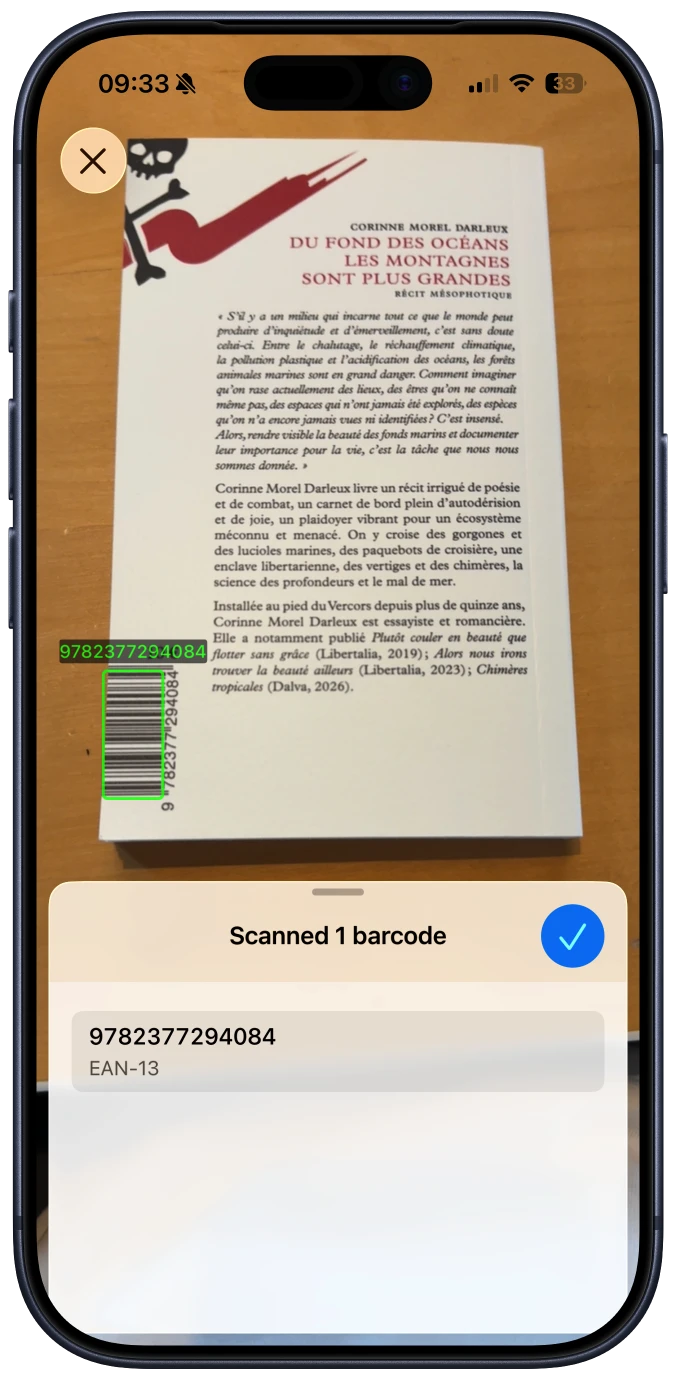
This is the right flow for workflows such as ticket validation, inventory counts, warehouse labels, and quick product lookups. After the SDK is installed and licensed, the integration is usually just a scan-flow call and result handling in the screen that starts scanning.
Live barcode scanning is available on iOS, Android, React Native, Flutter, Cordova, Capacitor, and .NET MAUI. It is not available on Web in SDK 6. If your app first scans a document and then extracts codes from the processed image, use barcode detection in documents.
The simple demo projects from our demo repository show a working barcode scanning integration. Native iOS and Android demos also include custom integrations if you need to own more of the camera UI.
Before implementing barcode scanning, you need to install and configure the SDK.
The barcode flow supports two user experiences: a quick scan that returns as soon as it finds a code, and a batch scan that lets the user collect several codes in one session.
Standard mode is optimized for quick lookups. The scanner returns immediately after detecting barcode values in the camera frame, which is the right behavior when the user is validating a ticket, opening a product record, or scanning one label at a time.
Batch mode keeps the scanner open while the user collects multiple unique codes. The SDK filters duplicate detections and returns the accumulated result when the user taps Done, which makes it better for inventory counts, receiving shipments, or any workflow where users scan several labels in a row.
Enable batch mode by setting isBatchModeEnabled to true.
Once you’ve installed and configured the SDK, start the barcode scan flow from the screen that triggers scanning. The examples below enable batch mode and limit detection to QR Code, Code 128, and EAN-13; omit supportedCodeTypes when you want to accept every supported format.
On Android, register the launcher as a property of your Activity or Fragment before launching the scanner. In Cordova, call the plugin after Cordova’s deviceready event.
func startBarcodeScanning() async {
    let configuration = GSKBarcodeScanFlowConfiguration(
        supportedCodeTypes: [.qr, .code128, .ean13],
        isBatchModeEnabled: true
    )

    let barcodeScanFlow = GSKBarcodeScanFlow(configuration: configuration)

    do {
        let result = try await barcodeScanFlow.resultByStarting(fromViewController: self)

        for code in result.barcodes {
            print("Detected \(code.type): \(code.value)")
        }
    } catch {
        print("Scanning error: \(error)")
    }
}
private val barcodeLauncher = registerForActivityResult(
    BarcodeScanActivity.Contract()
) { output ->
    when (output) {
        is FlowOutput.Success -> {
            output.result.codes.forEach { code ->
                Log.d("Scanner", "Detected ${code.type}: ${code.value}")
            }
        }
        is FlowOutput.Error -> {
            if (output.error.code == ScanFlowErrorCode.CANCELLATION) {
                // User cancelled
            } else {
                Log.e("Scanner", "Error: ${output.error.message}", output.error)
            }
        }
    }
}

private fun startBarcodeScanning() {
    val configuration = BarcodeScanFlowConfiguration(
        isBatchModeEnabled = true,
        supportedCodeTypes = EnumSet.of(Barcode.Type.QR, Barcode.Type.Code128, Barcode.Type.EAN13)
    )
    barcodeLauncher.launch(configuration)
}
function startBarcodeScanning() {
    var configuration = {
        isBatchModeEnabled: true,
        supportedCodeTypes: ['qr', 'code128', 'ean13']
    };

    cordova.plugins.GeniusScan.scanBarcodesWithConfiguration(
        configuration,
        function(result) {
            result.barcodes.forEach(code => {
                console.log(`Detected ${code.type}: ${code.value}`);
            });
        },
        function(error) {
            console.error('Scanning failed:', error);
        }
    );
}
import GeniusScan from '@thegrizzlylabs/capacitor-plugin-genius-scan';

async function startBarcodeScanning() {
  const configuration = {
    isBatchModeEnabled: true,
    supportedCodeTypes: ['qr', 'code128', 'ean13']
  };

  try {
    const result = await GeniusScan.scanBarcodesWithConfiguration(configuration);

    result.barcodes.forEach(code => {
      console.log(`Detected ${code.type}: ${code.value}`);
    });
  } catch (error) {
    console.error('Scanning error:', error);
  }
}
import GeniusScan from '@thegrizzlylabs/react-native-genius-scan';

async function startBarcodeScanning() {
    const configuration = {
        isBatchModeEnabled: true,
        supportedCodeTypes: ['qr', 'code128', 'ean13']
    };

    try {
        const result = await GeniusScan.scanBarcodesWithConfiguration(configuration);

        result.barcodes.forEach(code => {
            console.log(`Detected ${code.type}: ${code.value}`);
        });
    } catch (error) {
        console.error('Scanning error:', error);
    }
}
import 'package:flutter_genius_scan/flutter_genius_scan.dart';

Future<void> startBarcodeScanning() async {
    var configuration = {
        'isBatchModeEnabled': true,
        'supportedCodeTypes': ['qr', 'code128', 'ean13'],
    };

    try {
        final result = await FlutterGeniusScan.scanBarcodesWithConfiguration(configuration);

        for (var code in result['barcodes']) {
            print('Detected ${code['type']}: ${code['value']}');
        }
    } catch (e) {
        print('Scanning failed: $e');
    }
}
For .NET MAUI, use the ScanFlowService to start the barcode scan flow:
using GeniusScanSDK.ScanFlow;

async Task StartBarcodeScanning()
{
    var scanFlowService = new ScanFlowService();
    var configuration = new Dictionary<string, object>
    {
        ["isBatchModeEnabled"] = true,
        ["supportedCodeTypes"] = new[] { "qr", "code128" }
    };

    var result = await scanFlowService.ScanBarcodes(configuration);
    var barcodes = (IList<object>)result["barcodes"];
    foreach (var barcode in barcodes)
    {
        var code = (Dictionary<string, object>)barcode;
        Console.WriteLine($"Detected {code["type"]}: {code["value"]}");
    }
}
Most integrations only need isBatchModeEnabled and supportedCodeTypes. Keep the supported formats narrow when your workflow expects a known label type; it reduces accidental matches and makes the returned values easier to validate.
| Feature | Description | Property | Type | Values |
|---|---|---|---|---|
| Batch mode | Keep the scanner open so users can collect multiple unique codes before finishing | isBatchModeEnabled |
Bool | (default: false) |
| Supported code types | Barcode formats the scanner should detect | supportedCodeTypes |
[GSKBarcodeType] | .qr, .ean13, .ean8, .upce, .code128, .code93, .code39, .itf, .codabar, .dataMatrix, .pdf417, .aztec, .gs1DataBar, .microPDF417, .microQR, .msiPlessey |
| Highlight color | Color used to highlight detected codes | highlightColor |
UIColor | Any UIColor value |
| Menu color | Color used by the scanner controls | menuColor |
UIColor | Any UIColor value |
| Feature | Description | Property | Type | Values |
|---|---|---|---|---|
| Batch mode | Keep the scanner open so users can collect multiple unique codes before finishing | isBatchModeEnabled |
Boolean | (default: false) |
| Supported code types | Barcode formats the scanner should detect | supportedCodeTypes |
Set
|
Barcode.Type.QR, Barcode.Type.EAN13, Barcode.Type.EAN8, Barcode.Type.UPC_A, Barcode.Type.UPC_E, Barcode.Type.Code128, Barcode.Type.Code93, Barcode.Type.Code39, Barcode.Type.ITF, Barcode.Type.DataMatrix, Barcode.Type.PDF417, Barcode.Type.Aztec |
| Highlight color | Color used to highlight detected codes | highlightColor |
Int (Color) | Any color integer |
| Menu color | Color used by the scanner controls | menuColor |
Int (Color) | Any color integer |
| Feature | Description | Property | Type | Values |
|---|---|---|---|---|
| Batch mode | Keep the scanner open so users can collect multiple unique codes before finishing | isBatchModeEnabled |
boolean | (default: false) |
| Supported code types | Barcode formats the scanner should detect | supportedCodeTypes |
array | qr, ean13, ean8, upca, upce, code128, code93, code39, itf, codabar, dataMatrix, pdf417, aztec, gs1DataBar, microPDF417, microQR, msiPlessey |
| Feature | Description | Property | Type | Values |
|---|---|---|---|---|
| Batch mode | Keep the scanner open so users can collect multiple unique codes before finishing | isBatchModeEnabled |
boolean | (default: false) |
| Supported code types | Barcode formats the scanner should detect | supportedCodeTypes |
array | qr, ean13, ean8, upca, upce, code128, code93, code39, itf, codabar, dataMatrix, pdf417, aztec, gs1DataBar, microPDF417, microQR, msiPlessey |
| Feature | Description | Property | Type | Values |
|---|---|---|---|---|
| Batch mode | Keep the scanner open so users can collect multiple unique codes before finishing | isBatchModeEnabled |
boolean | (default: false) |
| Supported code types | Barcode formats the scanner should detect | supportedCodeTypes |
string[] | qr, ean13, ean8, upca, upce, code128, code93, code39, itf, codabar, dataMatrix, pdf417, aztec, gs1DataBar, microPDF417, microQR, msiPlessey |
| Feature | Description | Property | Type | Values |
|---|---|---|---|---|
| Batch mode | Keep the scanner open so users can collect multiple unique codes before finishing | isBatchModeEnabled |
bool | (default: false) |
| Supported code types | Barcode formats the scanner should detect | supportedCodeTypes |
List
|
qr, ean13, ean8, upca, upce, code128, code93, code39, itf, codabar, dataMatrix, pdf417, aztec, gs1DataBar, microPDF417, microQR, msiPlessey |
| Feature | Description | Property | Type | Values |
|---|---|---|---|---|
| Batch mode | Keep the scanner open so users can collect multiple unique codes before finishing | isBatchModeEnabled |
bool | (default: false) |
| Supported code types | Barcode formats the scanner should detect | supportedCodeTypes |
string[] | qr, ean13, ean8, upca, upce, code128, code93, code39, itf, codabar, dataMatrix, pdf417, aztec, gs1DataBar, microPDF417, microQR, msiPlessey |
The SDK supports common retail, logistics, and identity formats, including QR Code, EAN, UPC, Code 128, Code 93, Code 39, ITF, Data Matrix, PDF417, and Aztec. Some less common formats are platform-specific, so use the configuration table above when you need an exact value for a specific integration.
By default, the barcode flow accepts all supported barcode types. Passing supportedCodeTypes is useful when your app expects a known format, such as QR codes for tickets or EAN-13 for retail products.
The msiPlessey format is available on iOS 17 and later.
The snippets above are enough for a working live barcode scanner. From there, you can narrow supported formats, switch between standard and batch mode, or connect the returned values to your own validation workflow.
For extracting codes from document images instead of live scanning, see our tutorial on extracting codes from documents. For custom document scanning UI, explore the custom integration guide.
Start with a free trial license to test the SDK, or contact us directly for a custom quote tailored to your needs.
© 2026 The Grizzly Labs. All rights reserved.